Workflows with Approval
A process that handles the busywork on its own and still only sends something out once you have given the okay.
In September we looked at when a Skill is enough and when you need an Agent. One sentence was left open: for processes with fixed stages and approvals, the Workflow is the sharper tool. This month we build one, step by step, including every mistake we ran into while testing.
What This Month Is About
In September we sorted out when a Skill is enough and when it has to be an Agent. One sentence at the end was left open: for processes with fixed stages and approvals, the Workflow is the sharper tool. That is what this month is about.
The timing is right, because over the past few weeks Langdock has released two new features that make Workflows a lot more useful in everyday work:
- Approval by a humanA Workflow can pause in the middle of a run and wait until someone approves or rejects. Only then does it continue.
- Workflows call WorkflowsWhatever you have built once, such as looking up prices, becomes a building block you can reuse in every other Workflow.
There are smaller improvements too: a Workflow can now have several triggers, anyone who has already built processes in Zapier, Make or n8n can import them, and the Workflow chat, where you describe the process in your own words, now also works with the automatic model selection »Auto«. We tried both new features on one continuous example with Outlook, SharePoint, Excel and Teams, and built everything through the Workflow chat. The screenshots below come from that test.
What a Workflow Is
With an Agent, the model decides during the conversation what happens next. A Workflow, on the other hand, defines the process in advance: first this step, then that one, along this path for condition A and along that one for B. The model only works in the steps where you put it, and everything else runs the same way every time.
Every Workflow is made of the same building blocks:
- A triggerIt starts the Workflow, for example a new email in Outlook, a schedule, a submitted form or a click.
- Agent stepsIn these, a model reads, summarizes or writes.
- Actions in your appsSuch as reading a file from SharePoint, creating a draft in Outlook or posting a message in Teams.
- LogicConditions, loops over many entries or small calculation steps.
- PeopleThey approve mid-run or fill in a missing detail.
Before You Start: Do You Have Access?
Not everyone in Langdock sees the Workflows area in the left sidebar. The reasons are almost always organizational, and they are worth knowing.
- Workflows are a separate productYour workspace admins enable it in the settings. In many companies IT decides who gets Workflows, because a Workflow can create emails or read files on someone's behalf without any further input.
- The latest update brings finer permissionsAdmins can create custom roles and give individual people the right to create or share Workflows without making them admins. For a pilot team, that is the easiest route.
- The integrations have to be enabledA Workflow with Outlook, SharePoint or Teams only works if these integrations are active in the workspace and you have connected them to your account.
- Every Workflow has its own budgetIn the Workflow settings you set a monthly limit, and admins set a cap for the whole workspace on top of that. Steps with a model use credits, while pure actions and logic usually cost nothing.
It is rarely your fault. Ask your admins or your IT whether Workflows can be enabled for you, and bring a concrete use case with you, because in our experience that speeds up the decision a lot.
The Practical Example: Quote Requests at Quellberg
Remember Anna from sales at the fictional Quellberg GmbH? In September she built her quoting process first as a Skill and then as an Agent. Now we go one step further: the request arrives by email, and the quote should be ready as a draft without any copying or looking things up. But it should only go out once someone from sales has had a look.
For this we built two Workflows that work together.
- Workflow 1, »Look up prices«It receives a list of products with quantities, reads the Excel price list on SharePoint with the sheets for prices, volume discounts and terms, and returns item number, list price, discount and total for each line item. In the screenshots it is called »Preise nachschlagen«. This Workflow knows nothing about emails, it does exactly one job for whoever calls it.
- Workflow 2, »Process quote requests«It starts as soon as an email with »Angebotsanfrage« (quote request) in the subject arrives in Outlook, and runs in six steps.
-
Read the request
An Agent pulls the customer, contact person, products with crate quantities and requested date from the email.
-
Get the prices
The Workflow calls »Look up prices« and gets the prices back.
-
Write the draft
An Agent turns this into a draft quote as a reply email.
-
Submit for approval
The Workflow pauses and puts the draft in front of sales for approval.
-
On Approve
The reply lands as a draft in Outlook, and a short message appears in the sales team's Teams channel.
-
On Reject
The Workflow asks for a reason and posts only that in Teams.
At the end there is a finished draft in the mailbox, which someone from sales sends with a single click.

Starting with the Workflow chat
Under Workflows, click Create Workflow. The start screen has a field where you describe what your Workflow should do. There we described the process in eight sentences, the way we would explain it to a colleague, and left the model set to »Auto«.
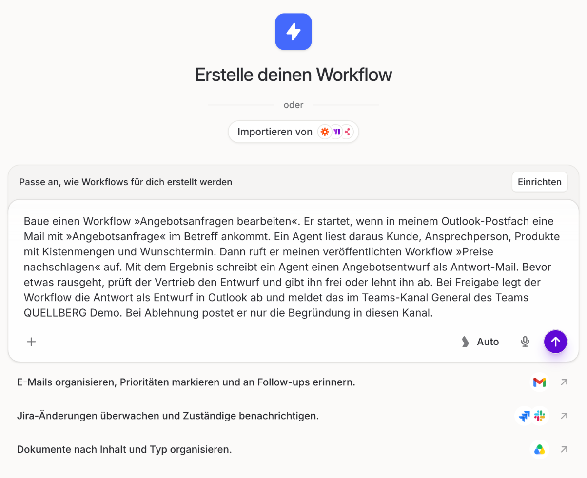
The chat picks the right integrations, creates a task list and builds the canvas step by step. For each of the two Workflows this took only a few minutes, and you can watch which step is being created.
Build the sub-workflow first
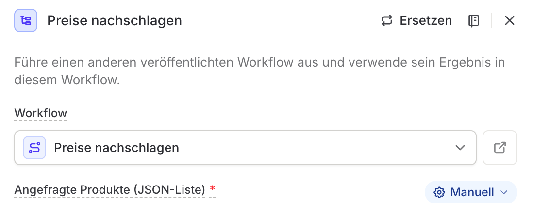
A Workflow can only call another one that is already published. That is why we built, tested and published »Look up prices« first. When building the main Workflow, the chat then asked for the link to this Workflow, because it cannot find published Workflows by name on its own. You simply copy the link from the address bar.
Adding the approval
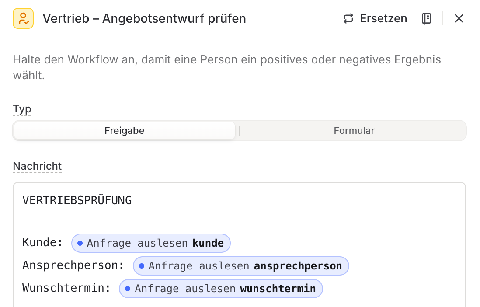
The building block for the approval is called User input and comes in two types: Approval with the Approve and Reject buttons, or Form if you want to ask for a piece of information mid-run. Our Workflow uses both, first the approval and, after a rejection, a form for the reason.
The Message field should contain everything the reviewer needs to make a decision. In our case that is the customer and requested date, one line per item with quantity, price and total, the grand total and, below that, the complete email draft.
Assigning connections and testing
Check the connections yourself. In the first Workflow the chat did not fill them in, and we had to select our connected account by hand on every step that used SharePoint and Excel. In the second Workflow they were already set. So before the first test, check every step that uses Outlook, SharePoint, Excel or Teams. Then start a run with Test run. For the Outlook trigger, Langdock shows you matching emails from your mailbox, and you pick one of them as a test case.
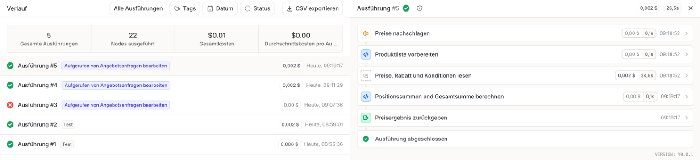
In the run history you can always see where the process currently stands. If it is waiting for you, the step shows »Benötigt Eingabe« (needs input). The call to »Look up prices« carries the link »Untergeordnete Ausführung öffnen« (open child run), which takes you straight into the run of the sub-workflow.
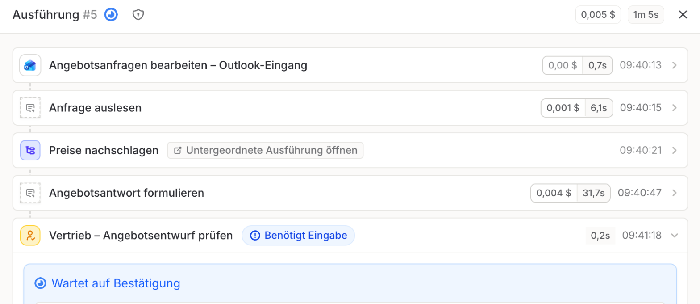
Further down in the history you then see the message and the two buttons. Clicking Approve sends the run down the upper branch, clicking Reject down the lower one.
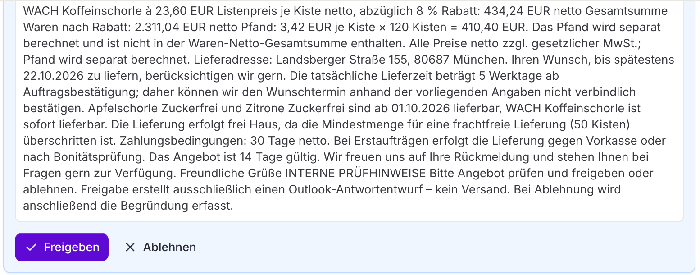
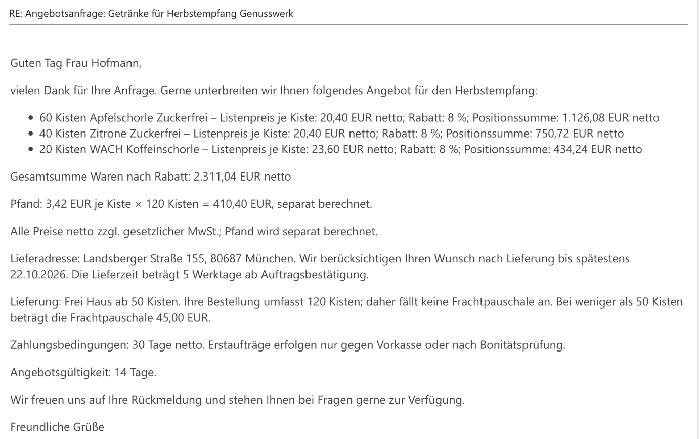
After approval, the draft was in Outlook seconds later, as a reply to the original request and with all line items, terms and the deposit. At the same time, the message that the draft was ready appeared in the Teams channel.
What Went Wrong in Testing and How We Fixed It
The Workflow did not work on the first try, and that is completely normal. You will run into the same four errors we did, which is why we are sharing them here.
- The chat invented a ruleIn the first draft of »Look up prices«, the Agent checked whether the price list was valid for today's date. Nothing like that was mentioned anywhere, so it returned no prices at all. We copied the error message word for word into the chat and added that there is no price validity and the process should be simpler. A few minutes later it ran.
- The handover between the Workflows did not matchThe main Workflow sent the products as text, such as »Apfelschorle Zuckerfrei, 60 Kisten« (sugar-free apple spritzer, 60 crates), while the sub-workflow expected product and quantity separately. Via »Untergeordnete Ausführung öffnen« the cause was found within a minute, and here too a short chat message with the error message and the desired format was enough.
- The first draft quote was too cautiousThe price list does say »netto« (net), but that detail did not make it through to the Agent writing the quote. So it flagged the draft as incomplete, because it did not know whether the prices were net or gross. This is exactly what the approval is for: we rejected it, entered the reason, and seconds later it showed up in the Teams channel. Then we told the chat that all prices are net plus VAT.
- The paragraphs were missing in OutlookThe first draft arrived as one long paragraph, because Outlook reads the text as HTML and swallows simple line breaks. After a note in the chat, the Workflow now passes the email text as HTML with paragraphs and a list for the line items.
More Ideas
- Invoices with approval above a thresholdAn invoice arrives by email in Outlook, an Agent reads the supplier and amount from the attachment, and only above a set amount does the department head have to approve. The Workflow then adds the invoice to an Excel list.
- Customer service repliesA complaint arrives by email, an Agent categorizes it and writes a draft reply. For sensitive cases the team lead approves, all others land directly as drafts in Outlook.
- Weekly report with commentaryEvery Friday the Workflow reads the numbers from an Excel file on SharePoint and summarizes them. Through a form it asks the department head for a short comment and posts both in Teams.
- A building block for customer dataA dedicated Workflow pulls a customer's contact person, terms and open orders from your lists. Quotes, service cases and invoices call it, and it is maintained in one single place.
What You Should Know
- Who can approveAnyone who can edit the Workflow can approve or reject. But only the people you add under Notifications in the Workflow settings get a notification in their Langdock inbox. Test runs do not send notifications, that only happens in the published Workflow.
- Where pending approvals show upUnder Workflows you will find the Monitor tab, which lists all runs waiting for input. The »Workflows mit erforderlichen Aktionen« tile (workflows with required actions) on the overview also shows whether something is waiting for you.
- The approval message appears as a block of textIn our test, the approval view showed no line breaks, even when they were in the message. So keep the message short and put the most important things, meaning customer, total and anything unusual, at the top.
- Sub-workflows have limitsOnly published Workflows can be called, and nesting goes up to five levels deep. If you change the sub-workflow, the change only takes effect once you have published it again.
- The chat sometimes writes formulasIn some fields the Workflow chat creates small formulas, for example to format numbers nicely. You do not need to understand them or adjust them yourself, because you simply describe changes in the chat again.
- Connections belong to peopleActions in Outlook or Teams run through the connection of the person who set them up in the Workflow, and therefore appear in that person's name. For Workflows used by a whole team, it is worth having a short conversation with IT beforehand about whose account that should be.
Our Tip
For quotes, replies to complaints or orders above a certain amount, someone already takes a look before anything goes out. The Workflow takes the busywork before that off your hands, and the decision stays with the person who makes it today.
Have the Workflow create a draft at the end instead of sending it on its own. It costs one click and gives everyone involved the confidence they need in the first few weeks.
As soon as you notice that you want to build the same step again in a second Workflow, turn it into a Workflow of its own. Looking up prices, fetching customer data or sending a message in the right format to the right team: you build blocks like these once and then use them everywhere.
Until next month,
Timo