What are Workflows – and why now?
▼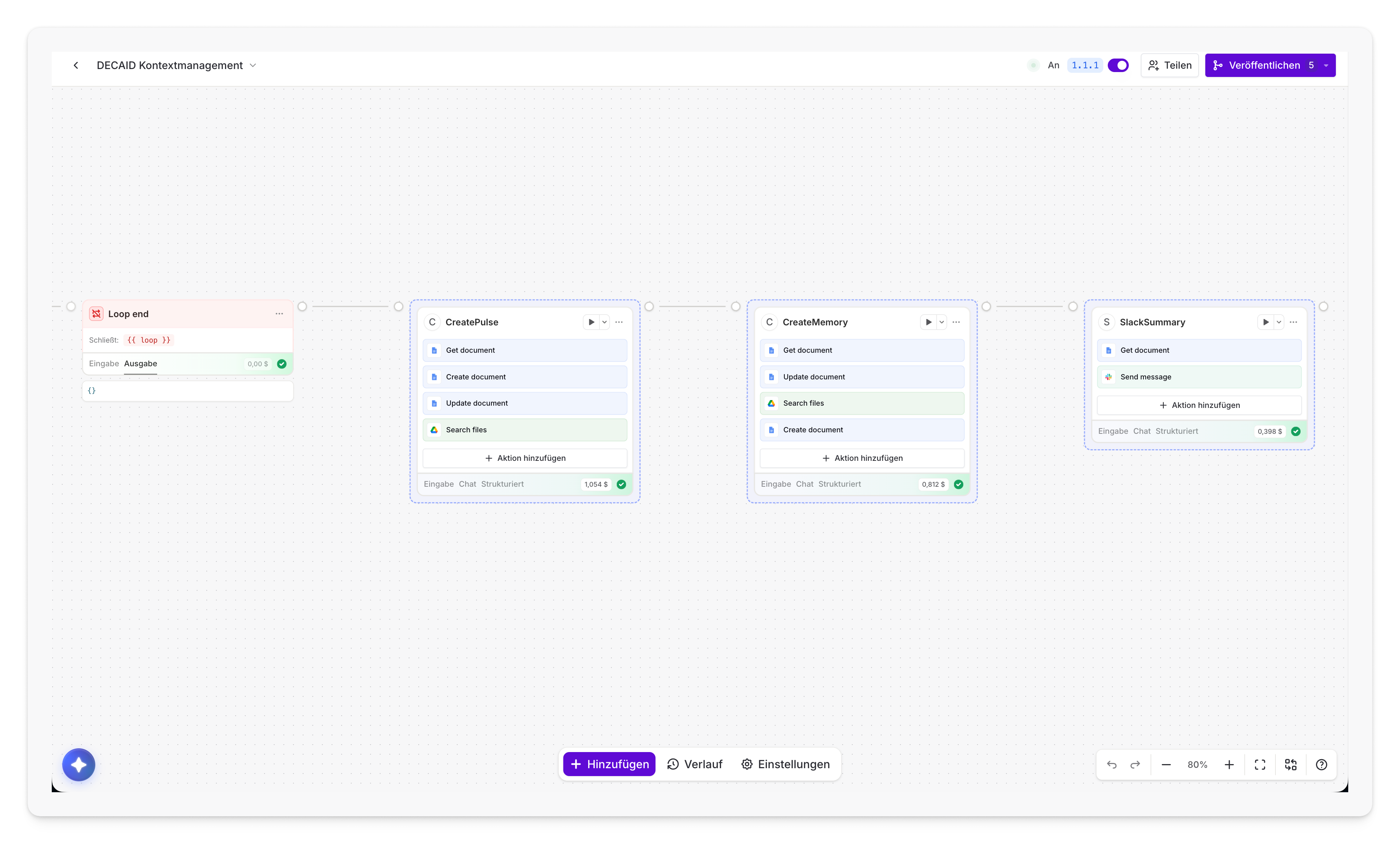
This is what Workflows look like in Langdock: Nodes connected on a visual canvas – no code required.
The Evolution: Chat → Agents → Workflows
You already know Langdock from the Chat and may have built your own Agents. Workflows are the next logical step: instead of manually interacting with AI, you automate entire processes from start to finish.
The difference in one sentence:
- Chat = You ask, AI answers (1:1 dialogue)
- Agents = AI with specialized knowledge and context (configured assistant)
- Workflows = Multiple steps run automatically – with AI, logic, and integrations (end-to-end automation)
When are Workflows worth it?
Workflows make sense when you have a process that is:
- Recurring (e.g., every day, every week, for every new lead)
- Multi-step (receive data → analyze → route → document)
- Not requiring human creativity at its core (routing, categorization, standard communication)
- Error-prone when done manually (forgotten follow-ups, inconsistent categorization)
What Workflows do NOT replace
Workflows are not a substitute for creative work, strategic decisions, or complex case-by-case handling. They take over the repetitive groundwork so your team can focus on what truly matters.
Understanding the Architecture: The Building Blocks
▼What is a Node?
A Node is an individual step in your workflow – think of it as a building block. Each Node has exactly one job: receive data, have AI analyze something, check a condition, send an email, and so on.
Nodes are placed on a visual canvas via drag & drop and connected to each other. No programming required – unless you want to use the Code Node.
Anatomy of a Node
Every Node has:
- Header: Shows the type and name. You will also find the Play button here for testing.
- Input Tab: Shows what data the Node received (after a test run).
- Output Tab: Shows what data the Node produced.
- Configuration Panel: Opens on click – this is where you configure everything.
Connections: How Data Flows
The lines between Nodes are more than just decoration: they determine the execution order and data flow.
- Left (Input): Where execution comes from
- Right (Output): Where execution continues
- Multiple Outputs: Condition Nodes have one output per condition
- Red Output: Special error path (when enabled)
Execution Models
Sequential (Default): Nodes run one after another. Node B waits until Node A is finished.
Parallel: When multiple Nodes are connected to a single output, they run simultaneously. This speeds up your workflow when the steps are independent of each other.
                → Send email →
Trigger →       → Create ticket →        → Continue
                → Update database →
Error Handling
For each Node, you can individually define what happens when an error occurs:
- Stop workflow (Fail): The entire workflow is marked as failed. Best for critical steps.
- Continue workflow (Continue): The error is logged, but the workflow continues. Best for optional steps.
- Error Callback: Execution is redirected via the red error output to other Nodes. Best for fallback logic.
Disabling Nodes
Individual Nodes can be temporarily disabled without deleting them. Disabled Nodes are skipped during execution – ideal for debugging or for optional steps you want to turn off temporarily. You can toggle the status by right-clicking the Node or via the Node menu.
Commenting on Nodes
Complex logic can be documented right on the canvas: the three-dot menu on any node offers Add Comment. The comment stays attached to the node and tells later editors why a threshold is set exactly the way it is, or which edge case is being caught here. It is the cheapest form of maintainability a workflow can have.
Replay events: testing with real data
Typing test data by hand is error-prone, because invented values never look like real ones. The Test Run panel therefore offers Replay events: pick a past event, meaning a real form submission, a real webhook request, or a real integration event, and run the workflow against it.
Test runs keep their context since September 2026: Since 18 September 2026, a test run remembers the results of nodes that have already run. If you adjust a node further down and test again, the earlier outputs are still available, so you no longer have to fire the trigger every time. Node output values have also been redesigned for clarity, which makes it easier to find the right fields for the next nodes.
Workflows as building blocks: one workflow calls the next since September 2026
Since 18 September 2026 (»Composable Workflows«), a workflow can call another workflow, wait for its result and continue with that output. In the editor you select the workflow to call and map its inputs, much like with an action.
- Up to five levels deep: A called workflow may call another one itself, but nesting stops at five levels.
- Cycle detection: If A calls B and B calls A again, Langdock detects the loop and prevents it.
- Traceable in the run history: Nested runs carry the markers Called by and Open Child Run. An error on the third level can be traced back to the run that started it all.
Workflow Builder Chat
Instead of placing each Node manually, you can create workflows via natural language descriptions. The Workflow Builder Chat (button at the bottom left of the builder) generates a complete workflow from your description.
- Describe workflows: “Create a workflow that generates a weekly report from Google Sheets every Monday and sends it via Slack.”
- Fix in Chat: When errors occur, a button automatically passes error details to the chat – the AI analyzes the problem and suggests corrections.
- Preferences: Configure preferred tools (email, CRM, ticketing) and Custom Instructions via the settings panel.
- Clarifying questions instead of guesswork: If your description is too vague, the builder asks a few clarifying questions first and offers suggested answers you can pick from.
- Chat History: The Chat History icon in the top-right corner takes you back to earlier conversations so you can continue exactly where you left off.
- Your canvas stays tidy: Chat edits preserve your layout. New nodes appear right next to the node they connect from, existing nodes stay where you put them. To rearrange everything, use the Auto Reorder button on the canvas or simply ask the builder to reorganize it.
Exporting and importing workflows since August 2026
Any workflow can be saved as a .json file and imported again later – the clean way to hand a workflow to a colleague or move it into another workspace.
- Export: Three-dot menu next to the workflow name → Export workflow (.json).
- Import: Import workflow (.json) in the same menu. Careful: importing replaces your current canvas. Langdock asks you to confirm the replacement before anything is saved.
- Langdock exports only: This import accepts files exported from Langdock. If Langdock detects an external format, it directs you to the Workflow Builder chat instead.
Bringing workflows over from other tools
You don't have to rebuild workflows from n8n, Zapier, or Make by hand. Export the workflow as JSON in the other tool, then upload the file using the Import from button in the chat panel, or paste the JSON directly into the chat. The Workflow Builder interprets the structure and rebuilds it as a Langdock workflow. Since 18 September 2026, the import from Zapier and Make has been improved: it has a clearer entry point, and when it fails, the error message says more precisely which part of the file does not match the expected schema.
Trigger Types: How Workflows Start
▼Every workflow needs a starting point – the Trigger. It determines when and how your workflow is initiated.
Trigger Types Overview
| Trigger | Initiated by | Typical Use Case |
|---|---|---|
| Manual | Button click | Testing, ad-hoc tasks |
| Form | Form submission | Feedback, requests, applications |
| Webhook | HTTP POST or GET request | External systems, APIs, GitHub |
| Scheduled | Time schedule (cron) | Daily reports, data sync |
| Integration | Event in app | Slack message, new Sheets row |
| From Chat/Agent | @-menu in Chat | On-demand automation from conversations |
Multiple triggers per workflow since September 2026: Since 18 September 2026, a workflow is no longer tied to a single starting point. You can attach several triggers to the same flow, for example an Integration Trigger for day-to-day operation plus a Manual Trigger or a form for stragglers. This saves you from building the same flow twice and maintaining it twice. Some documentation pages still say »exactly one trigger«; the changelog is authoritative here.
Manual Trigger
The simplest trigger: a click starts the workflow. Perfect for development and testing. Every new workflow should first be built and tested with a Manual Trigger before switching to an automatic trigger.
Form Trigger
Creates a web form that starts the workflow upon submission. Ideal for collecting data from internal or external users.
Available Field Types:
- Text (single-line), Long Text (multi-line)
- Email, Phone, Number
- Date, Dropdown, Checkbox
- File Upload
Key Settings:
- Define form title and description
- Mark fields as required
- Configure the “Thank You” message
- Enable public access (for external users)
- iframe Embedding (since March 2026): Workflow forms can be embedded via
<iframe>into external websites, intranets, or portals – users do not need to leave Langdock. - Allowed email domains: For fields of type Email you can define one or more permitted domains (comma-separated). Submissions from other domains are rejected. This is the clean way to keep a publicly reachable form limited to customers or to your own staff, without putting a login in front of it.
Webhook Trigger
Provides a unique URL that external systems can call via HTTP POST. The ideal trigger when you want to connect Langdock with your own applications, GitHub, Stripe, or other services. Since 18 September 2026, the Webhook Trigger also accepts GET requests, with authentication still optional. That makes the URL usable as a start link behind a button, in a Slack message or on the intranet. This is exactly why such a link should never circulate without a secret: anyone who knows the URL can start the workflow.
Auth modes (three variants):
- No auth: URL is publicly accessible. Only for testing or intentionally public endpoints.
- Query parameters: Token is passed as a URL parameter (e.g.
?secret=xyz). Visible in logs, only suitable for internal setups. - X-Webhook-Secret header (recommended): Token in the HTTP header. Doesn't leak into logs or referrers, the clean choice for production.
As soon as you select an auth method, Langdock auto-generates a secret. The secret is preserved when you switch between header and query parameter, so you won't accidentally lose your key. If you leave the field empty while an auth method is active, validation warns you. Existing webhooks using a query parameter keep working unchanged: if the field is unset, the old behavior stays in place.
Advanced options: signature headers and raw body
Under Advanced options you will find two switches, both off by default. You need them whenever a later node has to verify that a request is genuine:
- Include signature headers: Puts the content type and the supported signature headers under
trigger.output.headers. Supported are the signatures from Stripe, GitHub, Slack, DocuSign, Shopify, Svix, and Standard Webhooks. All other incoming headers stay out of the output as before. - Preserve raw request body: Keeps the original, unparsed body as a string under
trigger.output.rawBody. Parsing still happens, so you get both versions. Because both are retained, the size limit for such requests drops to 12 MB.
Both fields only appear when the matching switch is on for that webhook trigger. A real signature check usually needs both: the Code node reads the signature from trigger.output.headers and computes it against the untouched body from trigger.output.rawBody. Only the raw body produces the same hash as the sender, re-serialized JSON does not.
Sending files via webhook
A webhook can carry files right inside the JSON body: a single file under file, multiple files under files (up to 20). Both keys work at the top level and inside nested objects. Every file object needs fileName, mimeType, and exactly one content field: base64 for binary files such as XLSX, text for text files.
Limit: The entire JSON body must stay below 25 MB, Base64 content included. Base64 inflates files by roughly a third, so budget for that.
Processed files replace the original objects in the body. Access them like this:
{{trigger.output.body.files[0].path}}
{{trigger.output.body.files[0]._metadata.name}}
{{trigger.output.body.files[0]._metadata.mimeType}}

{{trigger.output.body.file.path}}   <-- for a single file under "file"
Response codes
| Code | Meaning | When |
|---|---|---|
202 | Accepted | Workflow was queued successfully |
400 | Bad Request | Invalid workflow ID, invalid format, or wrong secret |
404 | Not Found | Workflow not found |
413 | Payload Too Large | Raw body over 12 MB, or combined output over 25 MB |
429 | Too Many Requests | Rate limit or spend limit reached |
500 | Server Error | Internal error processing the webhook |
Handle these codes in the calling system: a 429 doesn't mean “broken”, it means “too much, or budget exhausted” and deserves a backoff.
Scheduled Trigger
Runs the workflow automatically at specified times. Perfect for recurring tasks.
Schedule Options:
- Every X minutes
- Hourly / Daily / Weekly / Monthly
- Custom cron expression
- Configurable time zone
Examples:
- Daily sales report at 9:00 AM
- Hourly data sync with external system
- Weekly cleanup task on Sundays
Integration Trigger
Responds to events in connected apps: new Slack message, new email in Gmail, new file in Google Drive, new lead in Salesforce, calendar event, and more.
Supported Integrations (Selection):
- Communication: Slack (messages, reactions), Microsoft Teams (messages, mentions, transcripts), Gmail, Outlook
- Productivity: Notion, Jira, Confluence, GitHub (pull requests, commits, releases), Microsoft Planner
- Storage & Finance: Google Drive, OneDrive, Dropbox, Stripe (payments, subscriptions, invoices)
- CRM: Salesforce (leads, contacts, opportunities), HubSpot (deals, form submissions, notes)
- Calendar: Google Calendar, Outlook Calendar, Calendly
- Others: Ashby (recruiting events), Microsoft Power BI
Configuration in Three Steps:
- Select the integration
- Choose the event type (e.g., “New message in channel”)
- Configure filters (e.g., only specific channels or keywords)
Langdock folder as a trigger since September 2026
The Langdock integration provides the trigger File added to folder. The workflow starts as soon as a file or a meeting is uploaded or moved into the selected folder. Existing contents and later edits do not start it. You fetch the content with the action Read folder file, and a meeting's owner, attendees, notes and transcript with Get meeting. Langdock never returns personal meeting notes.
- Connection via API key: Instead of OAuth you provide a personal or workspace API key with the scope Workflow Read API. Read folder file additionally needs Knowledge Folder API (files) or Meetings Read API (meetings); Get meeting needs Meetings Read API.
- Whose folders: A personal key sees its owner's folders, a workspace key sees every folder it is allowed to view, including those shared with the whole workspace. For production workflows the workspace key is more robust because it does not depend on one person's account.
- Dedicated deployments: Set the Base URL to
https://<deployment-url>/api/public.
Starting Workflows from Chat and Agents since March 2026
Workflows can be started straight from Chat. Strictly speaking this is not a separate trigger type but a second way to fire an existing trigger. There are two routes:
- Via the @-menu: type
@in the chat input field, pick a workflow from the list, and send your message. The AI then decides, based on your request, whether to actually trigger it. - As an agent action: attach workflows to an agent. In the agent editor go to Actions, click Add action, switch to the Workflows tab, and select the ones you want. The agent then calls them on its own whenever they fit the conversation.
Ideal for on-demand automations: you are in the middle of a conversation, need an analysis, or want to kick off a process without leaving the chat interface.
Since 10 September 2026 from the desktop app as well: Langdock now ships as a standalone application for macOS and Windows, with its own icon in the dock or taskbar. Log in with your Langdock account and you see the same chats, agents, and workflows as in the browser, with no extra setup. Handy while building: the app opens multiple tabs, so you can work on several tasks in parallel, and common actions have keyboard shortcuts. It is not a new trigger type and not a second permission layer, just the same interface in its own window.
Prerequisites: when does a workflow show up in the @-menu?
All four conditions have to be met:
- The workflow belongs to your workspace
- You have access to it (as owner or through sharing)
- Its status is active, meaning the workflow is published
- Its trigger type is supported in chat
| Trigger type | In chat? | Behaviour |
|---|---|---|
| Manual | Yes | Confirm and run, no input fields |
| Form | Yes | Form fields are rendered inline in the chat |
| Scheduled | Yes | Can be triggered on demand alongside its schedule |
| Webhook | No | Only via the webhook URL |
| Integration | No | Only via the app event |
Confirmation is mandatory
No chat-triggered workflow runs without explicit approval. For manual and scheduled workflows a compact confirmation panel appears with a Trigger and a Deny button. For form workflows the form is rendered directly in the chat instead, and you fill it in before submitting.
FILE fields are pre-filled with files from the running conversation. The 50 newest chat attachments are taken into account.
Status display in chat
| State | Display |
|---|---|
| Running | Animated indicator showing the workflow name |
| Completed | Ran [workflow name] in Xs together with the result |
| Failed | Red panel with failure details |
| Declined | Amber notice about the cancellation |
Permissions and limits
- Access is checked at different moments: via the @-menu you only see workflows you have access to. For agent actions access is verified at execution time, so you can hit an access error in the middle of a chat.
- Sharing exception: form workflows attached to an agent and set to Workspace or Public no longer need individual sharing.
- Tool name: the workflow name becomes a tool name, so “Summarize Report” turns into
workflow_summarize_report. It is capped at 63 characters, and very long workflow names get truncated. - Mobile app: workflows cannot be mentioned with @ there, and pending confirmations may stay unresolved.
- Sub-agents: an agent called by another agent cannot trigger workflows.
- No duplicate calls: the AI will not call the same workflow twice within one request.
Node Types: What Workflows Can Do
▼Agent Node – AI Analysis & Content Generation
The Agent Node is the centerpiece of most workflows. This is where AI comes into play: analyzing, categorizing, summarizing, generating text, or making decisions.
Two Options:
- Use an existing Agent: Uses an Agent from your workspace with its configuration and knowledge.
- Create a new Agent: Configured and optimized specifically for this workflow.
Structured Output (strongly recommended): Define the exact output format as a JSON schema. This guarantees structured data that downstream Nodes can reliably process.
{
  "sentiment": "negative",
  "category": "bug",
  "priority": "high",
  "summary": "App crashes during image upload"
}
Max Steps: Default: 25. Adjustable depending on task complexity (5-10 for simple tasks, 50-100 for complex research tasks).
Extended Thinking / Reasoning toggle (since May 2026): Extended Thinking can now be enabled directly inside the Agent Node via a simple on/off switch – no separate model variant required. Turn it on only when the task truly needs step-by-step logic (multi-label classification with rationale, routing decisions with several constraints). For standard extraction and simple classification leave it off, that saves tokens and makes the run faster.
Auto Model Mode since May 2026: The Agent Node’s model selector now offers an Auto mode that picks the right model per run based on task complexity – simple classification runs on a small, fast model, complex analysis on a frontier model. Useful when you don’t want to build model routing yourself. For predictable cost and reproducible output, pick an explicit model instead.
Available Tools:
- Web Search (for up-to-date information)
- Code Execution (sandboxed Python)
- Integration Actions (optionally with Human Confirmation)
- Knowledge Folder (access to company knowledge)
- Nested Agent Calls (call other Agents)
Prompt Engineering Tips:
- Be explicit: “Categorize as Bug, Feature Request, or Question” rather than just “Analyze the text”
- Provide context: Explain the role and background
- Use examples: Show the Agent what the desired output should look like
- Constrain the output: “Reply ONLY with one of the following categories: ...”
Condition Node – Conditional Logic
Routes workflow execution based on conditions. Each condition has its own output path.
Typical Use Cases:
- Check priority:
{{agent.output.structured.priority === "high"}} - Check amount:
{{trigger.output.amount > 5000}} - Check status:
{{customer.output.status != "inactive"}}
Available operators (Manual Mode): comparison (===, !==, >, <, >=, <=), logical (&&, ||, !), string methods (.includes(), .startsWith(), .endsWith()). Operators can be combined: {{trigger.output.score > 80 && agent.output.verified === true}}.
Modes & toggles: By default the first matching condition fires and the rest are skipped. With Allow multiple conditions every matching branch runs in parallel. In Prompt AI mode you phrase conditions in natural language; Force Select Branch guarantees that at least one branch is always chosen, even when no match is obvious.
Code Node – Custom JavaScript
For data transformations, calculations, and custom logic that does not require AI.
Perfect for:
- Mathematical calculations
- Reformatting data
- Parsing and manipulating JSON
- Data validation and cleansing
- Date/time operations
const scores = agent.scores || [];
const average = scores.reduce((a, b) => a + b, 0) / scores.length;

return {
  average_score: average.toFixed(2),
  highest_score: Math.max(...scores),
  grade: average >= 90 ? "A" : average >= 80 ? "B" : "C"
};
Available functions (JavaScript sandbox):
| Area | Utilities |
|---|---|
| HTTP & networking | ld.request(), ld.awsRequest() (signed AWS calls) |
| Data formats | ld.csv2parquet(), ld.parquet2csv(), ld.arrow2parquet(), ld.json2csv() |
| SQL | ld.validateSqlQuery(), ld.ensureReadOnlySqlQuery() – check a query before it hits a database |
| Crypto | ld.signWithRS256() – e.g. for service account JWTs, atob() / btoa() |
| Binary data & forms | Buffer.from() (minimal polyfill: accepts only Array, Uint8Array or ArrayBuffer, no strings; keep using btoa() for Base64), FormData (multipart uploads with file and metadata) |
| Debugging & timing | ld.log(), ld.wait() (backoff between retries) |
| Standard JavaScript | JSON, Date, Math, Array, Object |
By default, ld.request() strips the Authorization header and other credential headers when a request is redirected to a different origin. Only set preserveAuthOnRedirect: true if you genuinely trust the redirect target. Each response body is capped at 100 MB; larger responses fail with Response too large. For big files, stream them to external storage such as S3 instead of pushing them through the Code Node.
Python sandbox (alternative to JavaScript): Python runs without internet access and without the ld.* utilities, but ships with pre-installed libraries: pandas, numpy, openpyxl, pypdf. Useful for tabular analysis, Excel generation, and PDF parsing.
Files from the Code Node
Both languages can produce files. In JavaScript you return them in a files array, in Python you simply write them to the working directory. Either way they show up in the output under _files:
return {
  files: [
    { fileName: "report.csv", mimeType: "text/csv", text: csvContent }
  ]
};

// Access it in the next node:
// {{code_node_name.output._files[0]._metadata.name}}
Reading files from earlier nodes since September 2026: Since 18 September 2026, the Code Node can read files that earlier nodes brought in or created, such as a form upload or a webhook attachment. Each file object carries a path you can pass straight to open() in Python; the original filename is under _metadata.name. An uploaded CSV can thus be parsed directly in the Code Node, without a detour through an Agent Node.
Limit: 5 MiB input per Code Node. Before your code runs, Langdock measures the size of the upstream outputs your code references by slug. If they exceed the limit, the node fails with an error and your code is never executed. Note: reading from the data map instead of individual slugs loads every upstream output, so the full combined size counts against the limit.
Common causes:
- A Loop Node that collects the outputs of many iterations into a single array
- A previous node returning a very large API response, file content, or dataset
- Deeply nested objects that cannot be measured safely
How to fix: Filter or summarize the upstream output, or select only the fields you need. Process fewer items per iteration in any preceding Loop Node. Or disable Collect Outputs in the Loop Node.
And on the other end: 25 MB of output per node. This limit applies to every workflow node, not just Code Nodes. If your code returns more, the node fails with Node output exceeded the maximum size of 25 MB and the result isn't stored at all. The good news: files you return in the files array or write to the Python working directory are uploaded beforehand and don't count toward this limit. JavaScript adds a second ceiling: the complete response of the code execution service is capped at 150 MB, including files returned inline.
HTTP Request Node – External APIs
Call any external API: retrieve, create, update, or delete data.
Methods: GET, POST, PUT, PATCH, DELETE
Pro Feature: Import from cURL – Paste a cURL command from an API documentation, and all fields (URL, headers, parameters) are automatically populated.
Configuration:
- URL: Supports variables, e.g.,
https://api.example.com/users/{{trigger.output.user_id}} - Headers: Key-value pairs for auth, content type, etc.
- Query Parameters: Cleaner than hardcoding them in the URL
- Body: JSON with variables (for POST/PUT/PATCH)
Using the Response:
{{http_node.output.status}}          → Status code (200, 404, etc.)
{{http_node.output.data}}             → Response body
{{http_node.output.data.user.name}}   → Nested field
File Search Node – Search Company Knowledge
Searches your Knowledge Folders and returns the most relevant results. Ideal for RAG patterns (Retrieval Augmented Generation).
Configuration:
- Select a Knowledge Folder
- Define the search query (Manual, Auto, or AI Prompt)
- Set max results (default: 10)
What a Knowledge Folder accepts: Only text-based formats are searchable, meaning PDFs, Word documents, Markdown, and presentations. Tabular files (Excel, CSV), images, audio, and video are not accepted. Pull that kind of data into the workflow through an action on the source system instead, or process it in a Code node. This is the most common reason a file sits in the folder yet never shows up as a hit.
Recommendations for Max Results:
- 1-3: Focused, specific queries
- 5-10: When broader context is needed
- 10+: Comprehensive searches (may impact performance)
{{file_search.output.results}}                  → All results
{{file_search.output.results[0].text}}          → Text of the most relevant chunk
{{file_search.output.results[0].similarity}}    → Relevance score (0–1)
{{file_search.output.results[0].fileName}}      → File name
{{file_search.output.results[0].fileUrl}}       → URL to the source file
{{file_search.output.results[0].mimeType}}      → File format (e.g. application/pdf)
{{file_search.output.results[0].fileId}}        → Internal file ID
{{file_search.output.results[0].externalId}}    → ID in the connected source system
{{file_search.output.results[0].connectionId}}  → ID of the integration connection
{{file_search.output.results[0].fileSize}}      → File size in bytes
{{file_search.output.results[0].pageCount}}     → Number of pages
Richer file metadata (since May 2026): File Search nodes and folder tools now also return fileId, externalId, connectionId, fileSize, and pageCount, plus subsource, subname, and syncParams as references back to the source integration. Use these to deduplicate hits, deep-link back into the source system, and filter by size or page count before passing chunks into an Agent.
Web Search Node – Search the Internet
Searches the internet and delivers up-to-date information. Perfect for fact-checking, market research, or rapidly changing data.
Modes:
- Automatic: AI generates the optimal search query
- Manual: You specify the exact search terms
- Prompt: Instructions from which the AI generates a query
Action Node – Take Action in Connected Apps
Performs actions in connected integrations: send Slack messages, update Google Sheets, create Jira tickets, send emails.
Examples by Integration:
- Slack: Send message, send DM, create channel
- Google Sheets: Add row, update row, modify cell
- Gmail: Send email, create draft, add label
- Notion: Create page, update database entry
- CRM: Create contact/deal, log activity
New in the integration catalog September 2026
Langdock has added three systems that matter mostly in operations and IT. All three are available in the Action node just as they are in chat:
- ServiceNow: IT service management over OAuth. Create, update, and retrieve incidents, add comments and work notes, search tasks and service catalog items, and query configuration items in the CMDB. It requires an OAuth application on your own ServiceNow instance; members enter the instance URL when they connect, unless admins set a default.
- UiPath (Orchestrator): Trigger jobs, queue work items, list folders and processes, and inspect jobs and audit logs. Only UiPath Automation Cloud is supported, not Automation Suite or other self-hosted setups. Because UiPath registers OAuth applications per organization, there is no central Langdock client here: a UiPath admin creates the confidential application, and a workspace admin enters the Application ID and secret as a custom OAuth client.
- UiPath Automation Hub: A second, separate integration with its own authentication via an Open API token. Use it to search automation ideas, browse categories and applications, and read pipeline context. Handy when a workflow should feed the automation backlog rather than start robots.
- Shopify Admin: Always runs through your own Shopify app and therefore through Bring Your Own OAuth Client. The client secret belongs in workspace admin settings, never in a chat.
Build your own integration in chat: Integration Builder Agent October 2026
If a tool is missing from the catalogue, you no longer have to configure the integration field by field. The Integration Builder Agent builds it from a conversation: you describe the tool and what you need, attach the API docs if you like, and the agent researches the API, sets up authentication (OAuth, API key or none) and adds matching Actions and Triggers. When it is done, you get a summary including the auth type and scopes. You can start it from the template in chat, via Integrations → Add integration → Start building, or as a duplicated template under Agents → Browse templates.
Prerequisite: The agent works through the Langdock integration itself. That needs a connection with an API key that has the Integrations API scope, either a workspace key from your admin or a personal key if your admin allows the scope there. Once the new integration is connected, its Actions are available in chat, agents and the Action Node of your workflows. Dedicated deployments do not show the banner; use the agent template instead.
Connections: access to integrations
Every Action Node and every Integration Trigger needs a connection, a saved authentication link between Langdock and the external tool. There are four types:
| Type | Used for | Shareable? |
|---|---|---|
| OAuth | Google Workspace, Microsoft 365, Slack, HubSpot | No |
| API Key | OpenAI, Stripe, custom integrations | Yes |
| Service Account | Enterprise access configured by admins | Yes |
| None | Public APIs without authentication | Yes |
Connections are fundamentally user-bound. You only ever see the connections you created yourself, and an OAuth connection always runs with the permissions of the authenticated person. That is why OAuth access cannot be passed on directly: sharing the token would let others act in the original user's name. The other three types can be shared deliberately by workspace admins, with individual users, with groups, with workspace API keys, or with the entire workspace.
So that a whole team can still use the same action, there is the preselected connection on the agent: everyone running the agent goes through that single access without ever seeing the credentials. Without a preselection, everyone uses their own.
If you hold several connections to the same integration, say two Slack workspaces, you can mark one as your default. Langdock resolves in this order:
- Preselected connection on the action
- The user's default connection
- A prompt asking which access to use
Action-Level Scopes: which actions your workspace offers
Not every action of an integration is available automatically. Each action requires specific OAuth scopes from the provider, for example Calendars.ReadWrite to change Outlook calendar events. Workspace admins decide under Scopes and Action Access in the integration settings which actions are enabled and which scopes Langdock requests when a connection is created. You can switch between Scope view and Action view there.
- New actions enabled by default: When this setting is on, Langdock automatically enables newly added actions as long as the required scopes are already covered. When it is off, new actions stay inactive until someone reviews and enables them.
- Langdock Client (default) and Custom OAuth Client with scope sync: The requested scopes stay in sync with the enabled and shared actions. Enabling an action adds the required scopes after a confirmation; disabling it removes them again, unless another action still needs them.
- Custom OAuth Client with fixed scopes: Here admins maintain the scope list themselves. Actions without a matching scope carry a Missing scope badge. They can still be enabled, but they will not run until the scope is added to the OAuth application.
- Native actions (file attachments, folder syncing, Knowledge access, ID resolution) are always enabled. Their scopes cannot be removed in the sync modes.
- Export scope configuration: Produces a CSV with each action's name, description, required scopes, enabled state, and sharing details. Useful when IT wants to know which permissions a workflow actually requests before go-live.
So if an action you expected from the documentation is missing in the Action Node, the cause is usually not the workflow but this setting. And after every scope change, users have to refresh their connection once, otherwise the new permissions do not take effect. Since mid September 2026 these settings live under the umbrella term Plugins: Langdock brings integrations, Skills and tools together in one place. That changes nothing about how Action-Level Scopes work, only the path to them.
Looking up Microsoft scopes since September 2026
For the Microsoft integrations, Langdock has documented the minimum required delegated scopes action by action since September 2026, split by service: Outlook Calendar, Outlook Email, OneDrive, SharePoint, Teams, Planner, To Do, Entra, Power BI, Dynamics 365 and Excel. Each page spells out which Microsoft Graph scope sits behind an action, for example Files.Read.All for Get file in SharePoint, Sites.ReadWrite.All for Create list item or Mail.Send for sending from your own mailbox. Every connection additionally requests the base scopes openid, email, offline_access and User.Read. Factor that in before you send IT a list: a workflow that replies to an Outlook email needs Mail.ReadWrite and Mail.Send together, and for a shared mailbox the .Shared variant of each.
Image Generation Node – Generate Images
Generates images from text prompts directly within the workflow. Ideal for marketing assets, social media content, or dynamic visualizations.
Configuration:
- Prompt: Text description of the desired image (Manual, Auto, or AI Prompt Mode). Supports variables, e.g.,
A {{trigger.output.style}} image of {{agent.output.structured.subject}} - Image Model: Two models involved – an LLM optimizes the prompt, an image model generates the image. In Manual Mode, only the image model is used. Available options include GPT Image 2 (since April 2026, up to 2K resolution) and Stable Diffusion – the exact model list depends on your workspace configuration.
- Aspect Ratio: Square (1:1, social media/profile pictures), Landscape (16:9, presentations/banners), Portrait (9:16, stories/mobile)
- Style Presets: Auto, Photorealistic, Digital Art, Oil Painting, Watercolor, Sketch, Anime, 3D Render, Minimalist, Cinematic
Output:
| Field | Description |
|---|---|
{{image_gen.output.imageUrl}} | URL to the generated image (valid for 7 days) |
{{image_gen.output.imagePath}} | File path |
{{image_gen.output.attachmentId}} | Attachment ID for further processing |
{{image_gen.output.prompt}} | The prompt that was actually used |
{{image_gen.output.aspectRatio}} | Selected aspect ratio |
Limits: Timeout 60 seconds, PNG format only, no image-to-image function, URL validity 7 days.
Further Processing: Agent Node (image analysis), Action Node (share via Slack/email), HTTP Request (upload to external server), Loop Node (batch generation of multiple images).
Loop Node – Iterate Over Lists
Processes arrays of data: iterate through a list of customers, orders, or files and apply the same logic to each element.
Configuration:
- Input Array: The array to iterate over (e.g.,
{{trigger.output.customers}}) - Max Iterations: Safety limit (default: 200, maximum: 2,000)
- Concurrency: Off (sequential, default) or On (parallel – faster for independent iterations, ordering then not guaranteed)
- Collect Outputs: Aggregates all iterations into an output object with
iterations(array of index, item data and execution details) andtotal(count). Lets downstream nodes access every result in one place.
{{loop_node.output.currentItem}}        → the current data object
{{loop_node.output.currentItem.name}}   → nested access
{{loop_node.output.currentIndex}}       → current position (0-based)
{{loop_node.output.total}} → total countLoops with Agent Nodes can get expensive. 100 elements × €0.10 per Agent call = €10 per workflow run. Calculate costs beforehand and set a realistic max iterations limit.
Delay Node – Add a Pause
Pauses the workflow execution for a defined duration (1 second to 24 hours).
Typical Use Cases:
- API polling (regularly check whether a process is complete)
- Rate limiting (avoid API throttling)
- Retry logic with backoff
User Input Node: waiting for a human since September 2026
Pauses the run until a person decides or supplies missing information, then continues on the matching branch. Chapter 8 describes the flow with notifications and the Monitor.
- Type Approval: You write a Message and connect the outputs Approve and Reject.
- Type Form: You write a Description, add fields and connect Continue. There is no Reject output here.
- Error behaviour: With Approval, Continue (using error output) is not available, only Stop workflow or Add error callback.
Transcribe Audio Node: turning audio into text since September 2026
Since 18 September 2026, this node converts audio into text right inside the workflow. Typical sources are a file upload in a form, an email attachment, a file from Drive or a webhook. You then pass the text to an Agent Node that turns it into minutes, a summary or a classification. The public docs do not yet state supported formats, maximum length or the model used: test with a realistic recording before going live.
Send Notification Node – Notifications
Sends alerts directly to your Langdock inbox. Supports Markdown formatting and variables.
Recipients: For manually/form-triggered workflows, the triggering user; for scheduled/webhook/integration workflows, the workflow creator. For external recipients, use the Action Node with Slack, Gmail, etc.
Input Modes: Manual (direct message), Auto (AI generates based on context), or Prompt AI (custom AI instructions).
Good notifications include:
- Clear heading with priority
- Relevant data (name, ID, category)
- A concrete next step (“Please respond within 1 hour”)
Output Node – Store & Display Results
The Output Node is a workflow’s endpoint. It stores a resolved value as the workflow run’s result – visible in the run history, via the API, and directly in chat.
Especially important for chat integration: When a workflow is triggered from chat, the output appears as a formatted result panel directly in the conversation – showing the workflow name, execution time, and content.
Configuration:
- Value Field: Template expression with variables from previous nodes (Manual mode only)
- Slug: Auto-generated camelCase identifier – must be unique when using multiple Output Nodes
- Multiple Outputs: A workflow can contain multiple Output Nodes, each contributing separate keys to the result object
// Single output
{{output_node.output.value}}

// Example: Summary as output
Value: "{{agent.output.structured.summary}}"

// Example: Combined data
Value: "Report for {{trigger.output.customer_name}}: {{agent.output.structured.analysis}}"Variables & Data Flow
▼The Core Principle
Variables are the nervous system of your workflow. When a Node finishes, its output becomes available as a variable – and all downstream Nodes can access it.
Syntax
{{node_name.output.field_name}}Breakdown:
node_name= The unique name of your Node (e.g.,form1,analyze_data)output= The standard output object of every Nodefield_name= The specific data field
Nested Data
Real-world data is rarely flat. Use dot notation for nested access:
{{node.output.user.profile.email}}           → Nested object
{{api_response.output.data.items[0].title}}  → Array element
{{trigger.output.tags}}                       → Entire array
{{agent.output.structured.summary}}           → Structured Output
Using Autocomplete
Reusing Variables
An output can be used in any number of downstream Nodes:
Trigger (form1) →
  ├─ Agent (analyze {{form1.output.message}})
  ├─ HTTP Request (log {{form1.output.email}})
  └─ Notification (notify about {{form1.output.priority}})
Combining Variables
Mix data from different Nodes in a single field:
New order #{{trigger.output.order_id}} from {{customer.output.name}} for {{trigger.output.amount}} €Renaming Nodes
When you rename a Node, all variable references are automatically updated – no manual cleanup needed. That is why you should give Nodes descriptive names from the start:
- ✔
AnalyzeFeedback,CheckPriority,NotifySlack - ✘
agent1,condition2,action3
Environment variables: maintain configuration once since September 2026
Since 18 September 2026, values that several workflows need can be defined once as an Environment Variable and reused everywhere: base URLs, channel or folder IDs, thresholds. Configuration stays consistent across all workflows and is never hard-coded in a node.
- When it makes sense: As soon as the same value shows up in more than one workflow. If the channel or threshold changes, you update it in one place.
- Still open: The public docs do not yet describe the syntax, the scope or how secrets are handled. Check in the builder how the variable is inserted into a field the first time you use it, and only store credentials there once it is clear who can see them.
Field Modes: Auto, Manual & AI Prompt
▼Every configuration field in a Node can operate in one of three modes. Choosing the right one directly impacts quality, cost, and control.
Auto Mode
The AI automatically determines the appropriate value based on the context of previous Nodes.
| Pros | Quick setup, very flexible, covers edge cases |
| Cons | Consumes AI credits, less control, can get expensive with frequent execution |
| Ideal for | Simple data mapping when the context is obvious |
Manual Mode
You enter exact values or reference variables – no AI processing.
| Pros | Full control, no AI credits, fastest execution, predictable |
| Cons | Manual effort, no dynamic content |
| Ideal for | Fixed values (API keys, email addresses), exact variable references, templates |
Field: "Email Subject"
Mode: Manual
Value: "New order #{{trigger.output.order_id}} from {{trigger.output.customer_name}}"
Result: "New order #12345 from John Smith"
AI Prompt Mode
Natural language instructions from which the AI generates dynamic content.
| Pros | Intelligent, context-aware content, saves template work |
| Cons | Consumes AI credits, slower, output may vary |
| Ideal for | Email copy, summaries, dynamic messages |
Field: "Email Body"
Mode: AI Prompt
Instruction: "Write a friendly 2-paragraph response to {{trigger.message}}
that addresses the issue {{agent.issue_category}} and offers a solution."
Decision Tree: Which Mode?
Is the value always the same?
└─ Yes → Manual Mode (static text)

Does the value come unchanged from a previous Node?
└─ Yes → Manual Mode (with variables)

Does AI need to generate or transform the content?
├─ Yes → AI Prompt Mode
└─ No → Auto Mode (only for simple mapping)Guardrails & Security
▼The Guardrails Node validates content with AI-powered checks – before it reaches customers, gets saved, or is published.
Available Guardrails
PII Detection (Personally Identifiable Information)
Detects names, email addresses, phone numbers, addresses, credit card numbers, etc.
- Recommended threshold: 0.7–0.8
- Use case: GDPR compliance, before data is shared externally
Moderation
Checks for inappropriate, harmful, or offensive content.
- Recommended threshold: 0.6
- Use case: User-generated content, public communication
Jailbreak Detection
Detects attempts to bypass AI safety controls.
- Recommended threshold: 0.7
- Use case: Publicly accessible AI interfaces, validating user prompts
Hallucination Detection
Detects when AI-generated content contains false or unverifiable information.
- Recommended threshold: 0.6–0.7
- Use case: Fact-based content generation, customer communication
Custom Evaluation
Define your own validation criteria in natural language.
- Use case: Check brand voice, domain-specific rules, custom quality standards
Criteria: "Check whether the response matches our brand voice:
- Professional but friendly tone
- No jargon or abbreviations
- Customer is addressed by name
- Clear next steps are provided"
Setting Thresholds Correctly
| Threshold | Behavior | Use Case |
|---|---|---|
| 0.3–0.5 | Lenient | Avoiding false positives |
| 0.6–0.7 | Balanced | Most use cases |
| 0.8–0.9 | Strict | High-risk scenarios |
| 0.9–1.0 | Very strict | Only obvious violations |
Combining Multiple Guardrails
In practice, multiple guardrails are often enabled in a single Node. A typical combination: PII Detection + Moderation + Custom Evaluation for brand voice.
Human in the Loop: When Humans Decide
▼For sensitive steps you can pause the run until a human has decided. There are two tools for this: the User Input Node since September 2026 for approvals and follow-up questions mid-flow, and the Human in the loop toggle on the Action Node, which only executes a single action once someone with editor access has confirmed it.
Process
- The workflow reaches the User Input Node and pauses
- The people under Settings → Notifications → Recipients receive an inbox notification. Test runs send none
- Someone with editor access responds, directly from the notification or in the Monitor under Action required → Review
- The workflow continues on the matching branch (Approve, Reject or, for Type Form, Continue)
Careful, two different circles: Anyone with editor access may respond, but only the listed Recipients are notified, not every editor. Whoever is expected to approve therefore has to be on the recipient list. And because test runs do not send notifications, the approval path is best checked with a published run.
When is it appropriate?
- ✔ Financial transactions above a threshold
- ✔ Irreversible actions (data deletion, contract dispatch)
- ✔ Customer communication that requires quality review
- ✔ Production changes with risk potential
- ✔ Asking for missing information mid-run (User Input, Type Form)
When is it NOT appropriate?
- ✘ Routine actions with low risk
- ✘ Steps that need to be executed immediately
- ✘ High-frequency actions (will become a bottleneck)
Monitor: every pending approval in one place
You do not have to hunt for approvals inside individual workflows. Under Workflows → Monitor, Langdock collects every run that is waiting on someone: the Action required area lists the paused runs, Review shows the details, and you decide with Approve or Reject.
For teams this is the real gain. As long as approvals exist only as notifications, they depend on the attention of individuals. Monitor turns them into a shared list that any editor can work through.
Smart Approval with Conditions
Combine Conditions with Human in the Loop to require approval only when needed:
Agent: Calculate invoice amount

Condition: Amount > €5,000?
├─ Yes → User Input (Approval): Review payment → Execute payment
└─ No → Execute payment directly
This gives you automation for routine cases and control for exceptions.
Versioning & Deployment
▼Draft Version (v0)
Your sandbox for experimentation. Changes here have no impact on production. Test thoroughly before you publish.
Auto-Save & Change Summaries since April 2026: Drafts now save automatically – no more “Save” click required. On publish, Langdock proposes a Change Summary (which nodes/fields changed since the previous version). The summary lands in the version history and makes later rollback decisions easier to reason about.
Node renames now count as a change since June 2026: When you rename a Node, Langdock recognizes it as a change and includes it in the Change Summary. Previously, pure renames went unnoticed, so a published version could be treated as unchanged despite differing Node names. Now the version history stays complete even for cosmetic renames.
Published Versions
When you are satisfied, you create a new version (v1.0.0, v1.1.0, etc.). Published versions are:
- Immutable: Cannot be edited anymore
- Active for Triggers: Only active versions respond to real events
- Documented: Each version has a description of changes
- Rollback-capable: You can reactivate an older version at any time
Version Numbers (Semantic Versioning)
| Bump Type | Example | When? |
|---|---|---|
| Patch | 1.0.0 → 1.0.1 | Bug fixes, minor adjustments |
| Minor | 1.0.0 → 1.1.0 | New features or Nodes |
| Major | 1.0.0 → 2.0.0 | Breaking changes |
Workflow Status
| Status | Meaning |
|---|---|
| Not deployed | Being built – no triggers active |
| On | Published and responding to triggers |
| Off | Exists but temporarily deactivated |
Workflows API: managing workflows from your own systems since September 2026
The public Workflows API exposes the whole lifecycle: list, get, create, update, publish and delete workflows, plus read runs page by page. This lets you, for example, sync a workflow from a repository or publish a draft automatically.
| Scope | Allows |
|---|---|
WORKFLOW_API (Workflow Read API) | List, get individual workflows, paginated runs (/workflows/v1/runs) and the flat run export |
WORKFLOW_WRITE_API | Create, update, publish. On personal keys only if the admin allows it |
WORKFLOW_DELETE_API | Delete. Only on workspace keys, never on personal keys |
- Draft and live kept apart:
nodesandedgesdescribe the draft (v0),activeVersionthe published version. Secrets come back redacted and are preserved if you send the redacted value back unchanged. - Limits via API: The
limitsobject carriesmonthlyCostUsd,perRunCostUsdandmaxExecutionsPerHour. - Who acts: Workspace keys run as a service account, personal keys as their owner. Newly created workflows stay private until they are shared via
shareWithor by hand. Paginated runs require editor access.
Cost Management
▼Where Do Costs Arise?
- Agent Nodes: Consume AI credits based on model and token volume
- Auto Mode Fields: Use AI in the background → AI credits
- AI Prompt Mode Fields: Use AI for content generation → AI credits
- Web Search: Cost per search
- Loops: Multiply costs per element
Cost Driver #1: Loops with Agent Nodes
The most common cost trap: a loop over 100 elements with one Agent call per element.
Calculation: 100 elements × €0.10 Agent cost = €10 per workflow run
With daily execution: €300 per month – just for this one workflow.
Loops with Agent Nodes can quickly get expensive. Always calculate the expected monthly costs before going live: cost per run × expected runs per day × 30.
Strategies to Reduce Costs:
- Batching: Instead of 100 individual Agent calls → group elements into batches of 10
- Cheaper models: Not every task needs a frontier model such as GPT-6 Astra, GPT-5.6 Sol, Claude Opus 5, or Claude Fable 5.1 (on Langdock since 1 September 2026, EU-hosted and automatically enabled in workspaces that already had Fable 5). GPT-6 Astra has been available on Langdock since 7 September 2026 and is OpenAI’s most capable model so far, which Langdock describes as a step up from GPT-5.6 Sol for complex reasoning, coding, computer use, browsing, and professional work. It is EU-hosted and was switched on automatically in every workspace that already had an earlier GPT version; admins control access in the workspace settings. Existing workflows do not move by themselves: an Agent Node keeps the model configured inside it. What changed is the choice on offer, and that is exactly where a second look pays off before someone switches a Loop Node to the largest model. For simple categorization, Haiku 4.5, GPT-5.6 Luna, or Gemini 3.8 Flash is often enough. Gemini 3.8 Flash has been Google's current Flash model in Langdock since 2 September 2026, replacing Gemini 3.7 Flash; it is EU-hosted and automatically enabled in workspaces that already had an earlier Gemini version. Even so, a model swap in a live workflow belongs in the draft version and needs one pass through your test runs: cheaper does not automatically mean equally good for your prompt. New since late September 2026: Claude Opus 5.5, GPT-6 Sol and GPT-6 Luna (23 Sept), Claude Sonnet 5.5 (28 Sept) and GPT-6.1 Sol (30 Sept), all EU-hosted and enabled automatically wherever the respective predecessor was active. For agentic multi-step tasks, Sonnet 5.5 is the new default, Opus 5.5 stays reserved for the hardest analyses and, according to the price list, is even cheaper than Opus 5. GPT-6 Luna is built for focused, high-volume tasks and is therefore a candidate for Agent Nodes inside loops, while GPT-6 Sol and GPT-6.1 Sol target complex, agentic flows. Here too: existing Agent Nodes do not switch on their own. New in October 2026: Claude Haiku 5.5 (8 Oct) is, according to Anthropic, its cheapest, fastest and most capable small model yet, built for high-volume work such as summaries and subagent tasks. That makes it the obvious successor to Haiku 4.5 for categorisation and Agent Nodes inside loops. Gemini 4 Argon (13 Oct) brings stronger reasoning and writing for complex professional tasks and multi-step flows. Both are EU-hosted and enabled automatically wherever Anthropic or Gemini models were already active. Existing Agent Nodes keep their configured model here as well.
- Manual instead of Auto Mode: Fixed values and simple variable references cost nothing
- Conditions before Agent Nodes: Filter out irrelevant data before it reaches the expensive Agent
Monitoring Costs
- Check the Usage Tab after every test run
- Set Spending Limits in the workflow settings
- Calculate expected monthly costs before going live:
Cost per run × expected runs per day × 30 - CSV export of API costs since April 2026: Admin usage can now be exported as CSV – ideal for internal cost reports, chargebacks per team/cost centre, or reconciling against the workspace budget.
Limits
| Limit Type | Behavior |
|---|---|
| Monthly Limit (per workflow) | New runs are blocked once the monthly limit is reached. Built-in alerts at 80% and 95% of the workflow monthly limit. A progress bar shows spend against the limit. Default for new workflows: 25 USD/month |
| Execution Limit (per run) | An individual run is stopped when it exceeds the amount (prevents loop/retry escalation) |
| Execution steps | Max. 2,000 steps per workflow execution (workspace default). Every node execution counts as a step, including each iteration inside a Loop. Protects against endless loops |
| Max Executions Per Hour | Caps how often the workflow may start per hour, protecting against trigger storms, especially with webhooks. Default 100, configurable up to a maximum of 5,000 runs per hour |
| Alert Thresholds | Additional custom amounts (e.g. 25 USD, 50 USD) that trigger an email notification |
Workspace admin control (Settings → Products → Workflows):
- Workspace spend limit: Organization-wide cap for all workflow AI costs. Default €500, range €0 to €100,000. Once reached, every execution that needs AI models stops – regardless of the individual workflows' settings
- Billing period: In trial workspaces the entire trial usage counts (Lifetime usage, no reset), on all other plans the current calendar month with a reset on the first of the month (Billing month)
- Default monthly limit per workflow: Default for new workflows (1–10,000 USD, default 25 USD)
- Maximum monthly limit per workflow: Ceiling workflow owners cannot exceed (default: no limit). If you lower it, existing workflow limits above the new maximum are automatically reduced – Langdock shows you a summary of the affected workflows first. Admin-set override limits are not affected
- Monthly run limit: Maximum number of workflow executions per month, depending on the plan (2,500 by default in the cloud). Applies regardless of budget, so a workflow without any AI costs counts too
- Code Node toggle: Admins can disable custom JavaScript execution workspace-wide
- HTTP Node toggle: Admins can disable the HTTP Request Node workspace-wide. Careful: JavaScript Code Nodes can still reach external APIs via
ld.request(). If you really want to block outgoing requests, switch off both nodes. Existing workflows will then fail at exactly that step
Admins receive in-app and email notifications at 50%, 90%, and 100% of the workspace spend cap. On dedicated deployments, emails only go out if email delivery is configured there.
Who gets notified?
Who a workflow informs is defined in the workflow Settings under Notifications. The selection applies to email and inbox alike.
- Every person you add starts with both topics on: Failures (failed runs) and Spend alerts (cost thresholds).
- You can turn off exactly one of the two topics per person. At least one has to stay on, so anyone who should receive nothing has to be removed from the list.
- Your custom alert thresholds go to everyone who has Spend alerts switched on.
- Anti-spam rule: Failure emails for published runs are sent at most once per hour. After that, the next email waits until a published run succeeds again.
Cost per workflow: the Usage Export API
Next to the run history there is an endpoint that returns exactly one row per workflow, which makes it suitable for reporting:
POST https://api.langdock.com/export/workflowsYou get one row per non-template workflow that had runs or cost in the selected period. It includes workflow_name, status (ACTIVE, INACTIVE, NOT_DEPLOYED), runs, total_cost_usd, monthly_limit_usd, current_month_cost_usd, and monthly_utilization_pct_current, that is how much of the monthly cap is used up.
- When user-level data is disabled in the workspace,
workflow_owner_idandworkflow_owner_emailare omitted, and owner-only private workflows drop out of the export entirely. - BYOK workspaces get additional token columns (
sum_input_tokens,sum_cached_input_tokens,sum_cache_creation_tokens,sum_output_tokens), because the model keys live in-house there. - This export does not support
group_by. Langdock deliberately blocks browser-origin requests, so the key belongs on a server.
That answers the question that comes up in every review: which ten workflows burn the most budget, and how close are they to their limit?
10 Workflow Blueprints for Real-World Use
▼Blueprint 1: Customer Feedback Processing
Form Trigger
→ Agent: Analyze sentiment, category, priority (Structured Output)
→ Condition: Priority = "high"?
  ├─ Yes → Notification: Notify team
  │       → Action: Slack message to #support
  └─ No → (continue)
→ Action: Add row to Google Sheets
Cost estimate: ~€0.05 per submission (one Agent call)
Blueprint 2: Email Triage & Auto-Routing
Gmail Trigger (new email in support inbox)
→ Agent: Categorize issue, assess urgency (Structured Output)
→ Condition: Check category
  ├─ "Technical Issue" → Action: Create Jira ticket
  ├─ "Sales Inquiry" → Action: Slack DM to sales team
  ├─ "Billing Question" → Action: Forward to accounting
  └─ "Other" → Notification: Inform manager
→ Action: Set label in Gmail
Blueprint 3: Weekly Automated Report
Scheduled Trigger (Monday 8:00 AM)
→ HTTP Request: Fetch sales data from CRM
→ HTTP Request: Fetch support tickets from Jira
→ Code: Calculate KPIs (revenue, ticket volume, conversion rate)
→ Agent: Generate executive summary
→ Action: Email report to management team
→ Action: Save report to Google Drive
Blueprint 4: Application Screening
Form Trigger (Application)
→ Agent: Analyze resume, extract skills (Structured Output)
→ File Search: Find job description in Knowledge Folder
→ Agent: Calculate fit score (0-100) based on requirements vs. profile
→ Condition: Check score
  ├─ ≥ 80 → Action: Send interview invitation via email
  ├─ 50-79 → Action: Add to shortlist sheet + notify HR
  └─ < 50 → Action: Send friendly rejection via email
→ Action: Log all data in recruiting sheetBlueprint 5: Content Pipeline
Notion Trigger (new content entry with status "Draft")
→ Agent: Analyze briefing, extract SEO keywords
→ Web Search: Research competitor content on this topic
→ Agent: Create content outline with USPs and keywords
→ Guardrails: Check brand voice + tone
→ Action: Write outline to Notion page
→ Notification: Notify content manager
Blueprint 6: Qualifying Quote Requests
Form Trigger (Quote Request)
→ Web Search: Research company profile (size, industry, news)
→ Agent: Lead scoring (hot/warm/cold) + reasoning (Structured Output)
→ Condition: Check score
  ├─ "hot" → Action: Slack alert to senior sales
  │          → Action: Send scheduling link via email
  ├─ "warm" → Action: Add to pipeline sheet
  │           → Action: Send nurturing email
  └─ "cold" → Action: Send standard info via email
→ Action: Create CRM entry
Blueprint 7: Meeting Preparation
Calendar Trigger (meeting in 1h)
→ Code: Extract attendee emails
→ HTTP Request: Load customer history from CRM
→ File Search: Find relevant documents in Knowledge Folder
→ Agent: Create meeting brief (context, open items, recommendations)
→ Action: Send brief as Slack DM to meeting organizer
Blueprint 8: Internal Knowledge FAQ
Slack Trigger (message in #ask-ai)
→ File Search: Find relevant information in Knowledge Folder
→ Condition: Relevant results found? (Score > 0.5)
  ├─ Yes → Agent: Formulate answer based on search results
  │       → Action: Reply in Slack thread
  └─ No → Action: Reply in Slack: "No info found, escalating"
           → Notification: Inform knowledge manager
Blueprint 9: Invoice Processing with Approval
Gmail Trigger (new invoice)
→ Agent: Extract invoice data (amount, vendor, due date)
→ Guardrails: PII check
→ Condition: Amount > €5,000?
  ├─ Yes → Human in the Loop: Request approval
  │       → Action: Create payment order
  └─ No → Action: Create payment order directly
→ Action: Add entry to accounting sheet
→ Notification: Confirmation to finance team
Blueprint 10: Competitive Monitoring
Scheduled Trigger (daily 7:00 AM)
→ Loop over competitor list
  Variable: competitor
  → Web Search: "{{competitor.name}} news last 24h"
  → Delay: 2 seconds (rate limiting)
→ Agent: Summarize all results and weight by relevance
→ Condition: Relevant news found?
  ├─ Yes → Action: Send summary via Slack to #competitive-intel
  └─ No → (do nothing)
→ Action: Update weekly report in Google SheetsBest Practices & Common Pitfalls
▼The 10 Most Important Best Practices
- Name Nodes clearly. “Analyze Feedback” instead of “Agent 1”. Your future self will thank you – and variables become self-explanatory.
- One workflow = one purpose. Keep workflows focused. Two small workflows are better than one monster workflow that does everything.
- Test each Node individually. Use the Play button on every Node before building further. Catching errors early saves time.
- Always enable Structured Output. For Agent Nodes in workflows, there is no reason not to. Guaranteed format prevents parsing errors in downstream Nodes.
- Manual Mode as the default. Only use Auto and AI Prompt Mode when necessary. Every AI mode call costs credits.
- Plan for error handling. Especially for Scheduled Workflows: add notifications so you are informed when something goes wrong.
- Calculate costs before going live. Especially with loops and frequent triggers, costs can add up quickly. Do the math beforehand.
- Filter early, process late. Conditions before expensive Nodes (Agent, HTTP Request) reduce unnecessary costs.
- Use the draft version for testing. Only publish once everything works. The draft version (v0) is your playground.
- Document complex logic. Add descriptions to Nodes, especially for Code Nodes and nested Condition logic.
Common Pitfalls
Pitfall 1: Auto Mode everywhere
Auto Mode is convenient but consumes AI credits on every run. For a workflow that runs 100 times per day, this adds up quickly. Use Manual Mode for anything that is static or comes directly from variables.
Pitfall 2: Loop without limit
A loop without a max iterations limit over an unknown-size array can lead to cost explosions and timeouts. Always set a realistic limit.
Pitfall 3: No error paths
If an HTTP Request fails and you have not defined an error path, the entire workflow stops without notification. You will only notice when someone asks why nothing happened.
Pitfall 4: Webhook without secret
A publicly accessible webhook can be called by anyone – including bots. In production always use the X-Webhook-Secret header, not query parameters (tokens in URLs end up in logs and browser history).
Pitfall 5: Vague Agent instructions
“Analyze this text” delivers unpredictable results. Be specific: what exactly should be analyzed? What categories exist? What should the result look like?
Pitfall 6: Scheduled Workflows without monitoring
A workflow that runs every morning at 6:00 AM can fail for weeks without anyone noticing. Always add a failure notification.
Pitfall 7: Inputs too large for Agents
Agents work best with focused inputs. Do not send a 50-page document through in its entirety – instead, extract the relevant sections first (e.g., with File Search or Code Node).
Troubleshooting
▼Variable not available
Problem: The desired variable does not appear in autocomplete.
Cause: The Node is not connected, comes after the current Node, or has not been tested yet.
Solution: Make sure the Node producing the variable comes before the consuming Node in the workflow graph. Run a test.
Variable is undefined or null
Problem: Variable exists but returns undefined or null.
Cause: The source Node failed, the field does not exist, or optional data was not provided.
Solution in Code Node:
const email = trigger.output.email || "unknown@example.com";
const amount = trigger.output.amount || 0;
Code Node fails: input too large
Problem: The Code Node aborts with an error and your code never runs.
Cause: The combined input from the upstream nodes exceeds the 5 MiB limit. The most common trigger is a Loop Node with Collect Outputs enabled across many iterations, or a very large API response.
Solution: Reference only the slugs you actually need instead of reading the whole data map. Reduce the upstream output by filtering or summarizing, process fewer items per loop iteration, or turn Collect Outputs off.
Node fails: output too large
Problem: The node runs through but fails at the end with Node output exceeded the maximum size of 25 MB.
Cause: Every workflow node may return at most 25 MB of output. Typical culprits: unfiltered API responses, large database queries, or loops that collect everything.
Fix: Return only the fields downstream nodes actually need. Paginate large datasets instead of passing them along in one piece. If you need the bulk content further down, turn it into a file – files are uploaded before the output is measured and don't count toward the limit.
Agent delivers unexpected results
Problem: Structured Output has unexpected values.
Solution: Check the Output Tab of the Agent Node after the test run. Sharpen the instructions, add examples, and explicitly constrain the possible values.
Workflow does not run on schedule
Checklist:
- Is the workflow deployed (not in draft)?
- Is the workflow active (not paused)?
- Is the time zone correct?
- Is the cron expression correct?
Integration trigger or Action node suddenly stops working
Problem: A workflow with an integration trigger (such as a new Slack message) no longer starts, or an Action node (send mail, write a Sheets row) fails without a clear error.
Cause: The integration's connection is no longer valid. Four causes are possible:
- The OAuth token has expired (after days or weeks depending on the provider)
- Access was revoked in the source system
- The action is missing scopes, for example after the workflow was extended
- The underlying custom OAuth client was removed
How to spot it: the connection selector in the node shows a warning with a direct link to reauthorize. On top of that, Langdock collects active workflows with an invalid connection under Workflows → Monitor in the Workflows to reconnect area, and it does so before the next run fails on them. Click Review on the row and then Reconnect in the dialog to fix the access, provided the connection is yours.
That is the practical difference to before: scheduled and polling workflows used to run quietly into an error because nobody was watching. Monitor makes the problem visible while it is not yet a problem. If you run automations in production, keep an eye on this list the same way you watch the pending approvals under Action required.
Solution since June 2026: You can re-authenticate integrations directly in settings, without removing and re-adding them. Existing workflows that use the integration keep running afterwards with no rebuild. Previously the integration had to be deleted and reconnected from scratch.
Integration trigger does not fire, but there is no error
Problem: A workflow with an integration trigger simply does not run, and nothing shows up in the run history.
Cause: Integration triggers poll their source at intervals. When such a poll failed, it used to disappear silently, producing neither a run nor a message.
Solution since July 2026: Failed trigger polls now appear as failed workflow runs with an error message in the run history. Look there first instead of rebuilding the workflow. In most cases an invalid connection is behind it.
HTTP Request fails
Checklist:
- Is the URL correct? (including
https://) - Is the HTTP method correct?
- Are authentication headers correct?
- Is the body format valid JSON?
- Tip: Use “Import from cURL” from the API documentation
Re-running failed runs since August 2026
Problem: An integration was briefly unreachable, a token expired, or a target system returned a server error. Afterwards twenty runs sit at Failed, even though nothing is broken in the workflow itself.
Solution: You do not have to redo those runs one by one. In the run history (Past runs) you filter by the status Failed, select up to 20 runs at once, and restart them in one go. Two modes are available:
- Continue from the failed step: Nodes that already succeeded are not executed again. The safe default when upstream nodes have sent emails, created records, or caused costs.
- Full restart: The run starts at the trigger again, with the original trigger data. Useful when an early node produced wrong values.
Which version actually runs? This is where most misunderstandings happen in practice. Continue from the failed step stays on the version the run originally started on. Full restart uses the latest deployed version, or the saved draft if nothing has been deployed yet. Unpublished canvas changes are used in neither case: if you built a fix in the draft, you have to publish it first, otherwise the retry repeats the very same failure.
One more quirk: a successful retry does not heal the old run. It stays on Failed and merely gains a Successful retry chip that names the completed retry and links to it. So a failure statistic that only counts status values will not see your clean-up work.
Tracking down intermittent failures: export the run history since August 2026
Problem: A workflow does not fail every time, only sometimes. That is nearly impossible to reconstruct in the editor, because the cause sits somewhere among hundreds of runs.
Solution: The Workflow Run Export API returns runs and node executions as JSON, one row per node execution. Use it to count failure rates per node, compare durations, and spot patterns that stay invisible in any single run.
curl "https://api.langdock.com/workflows/<workflowId>/runs?from=2026-08-01&to=2026-08-31" \
  -H "Authorization: Bearer <WORKSPACE_API_KEY>"
Every row carries run_id, run_number, run_status (PENDING, IN_PROGRESS, AWAITING_INPUT, COMPLETED, FAILED, CANCELLED), workflow_version, trigger_mode (WEBHOOK, FORM, SCHEDULED, INTEGRATION_POLLING, MANUAL), node_type, node_status, failure_code, plus input, output, and logs. A run without any node executions returns a single row whose node fields are null. Rows are ordered oldest to newest.
- Key: a workspace API key with the
WORKFLOW_APIscope (Settings → Workspace → Products → API). Personal API keys only cover the Completion APIs and will not work here. - Access: the key must belong to an owner or editor of the workflow; workspace admins get through without a share. The User role is not enough, not even for admins.
- Time range:
fromandtoare required (ISO 8601) and there is no default range. Date-only values run from 00:00:00.000 to 23:59:59.999 UTC; a timestamp without a time zone is read in the server's time zone, so passZor an explicit offset. - Limits: at most 10,000 runs and 8,000,000 bytes of payload per request, otherwise you get a
400withWORKFLOW_RUN_EXPORT_LIMIT_EXCEEDEDorWORKFLOW_RUN_EXPORT_TOO_LARGE. There is no pagination, so the fix is always a narrower date range. Rate limit: 500 requests per minute per workspace and key. - Retention:
inputandoutputturnnullafter 30 days. If you want to analyse further back, export regularly rather than retroactively. Individual values above 16,000 bytes arrive truncated, marked by a_truncatedobject withoriginalBytes,maxBytes, andmessage. - Empty payloads: when
data_redactedistrue, you lack access to one of the nodes involved, often an Action or Agent node. In that case the run is not broken, the sharing is. - What the API does not give you: the response does not say who triggered a run. A
workflow_versionof0means the draft, and the API offers no filter for test versus production runs.
On dedicated deployments, https://<your-domain>/api/public replaces api.langdock.com. Langdock deliberately blocks requests straight from the browser: the export belongs in a backend or a script, not in a web app.
Glossary
▼| Term | Definition |
|---|---|
| Node | An individual step/building block in a workflow |
| Trigger | The starting point of a workflow (Form, Webhook, Schedule, Integration, Manual) |
| Connection | Line between Nodes that defines execution order |
| Variable | Data passed from one Node to downstream Nodes |
| Structured Output | Defined JSON schema for Agent responses |
| Field Mode | How a configuration field is populated (Auto, Manual, AI Prompt) |
| Guardrail | AI-powered validation check for content |
| Human in the Loop | Manual approval step in a workflow |
| Draft (v0) | Draft version for testing, not active in production |
| Deploy | Publishing a tested version as a production version |
| Loop | Iteration over an array/list of elements |
| RAG | Retrieval Augmented Generation – enriching AI responses with knowledge search |
| Webhook | HTTP endpoint that external systems can call |
| Workflow Run Export API | Workspace API (scope WORKFLOW_API) that exports a workflow's runs and node executions as JSON |
| Rate Limiting | Restricting the frequency of API requests |
| Error Callback | Alternative execution path when a Node fails |
| Output Node | Endpoint node that stores the workflow result and displays it as a panel in chat integration |
| User Input Node | Pauses the run for an approval (Approve/Reject) or a form (Continue) by a person with editor access |
| Nested workflow | Workflow called by another workflow; up to five levels, with cycle detection |
| Environment Variable | Value defined once and reused by several workflows |
| Transcribe Audio | Node that converts audio into text inside the workflow |